Interactive web-based access
EFP Interactive is a federated Open OnDemand instance that connects to the EuroHPC systems which are integrated in the EuroHPC Federation Platform (EFP).
EFP Interactive provides various features:
Access
Using EFP Interactive you will only be able to access EuroHPC systems and resources on which you have an active project that has been integrated through the EuroHPC Federation Platform.
File management
Through EFP Interactive, you can manage your files on the EuroHPC systems on which you have access to. This includes copying, moving, renaming, deleting, uploading, downloading, and creating of files and directories.
File transfers
It is recommended to keep file browser open while transfers are in progress.
Shortcuts
Some common shortcuts to home directories and project directories are provided.
The Change directory button can be used for accessing other places.
Copying/moving
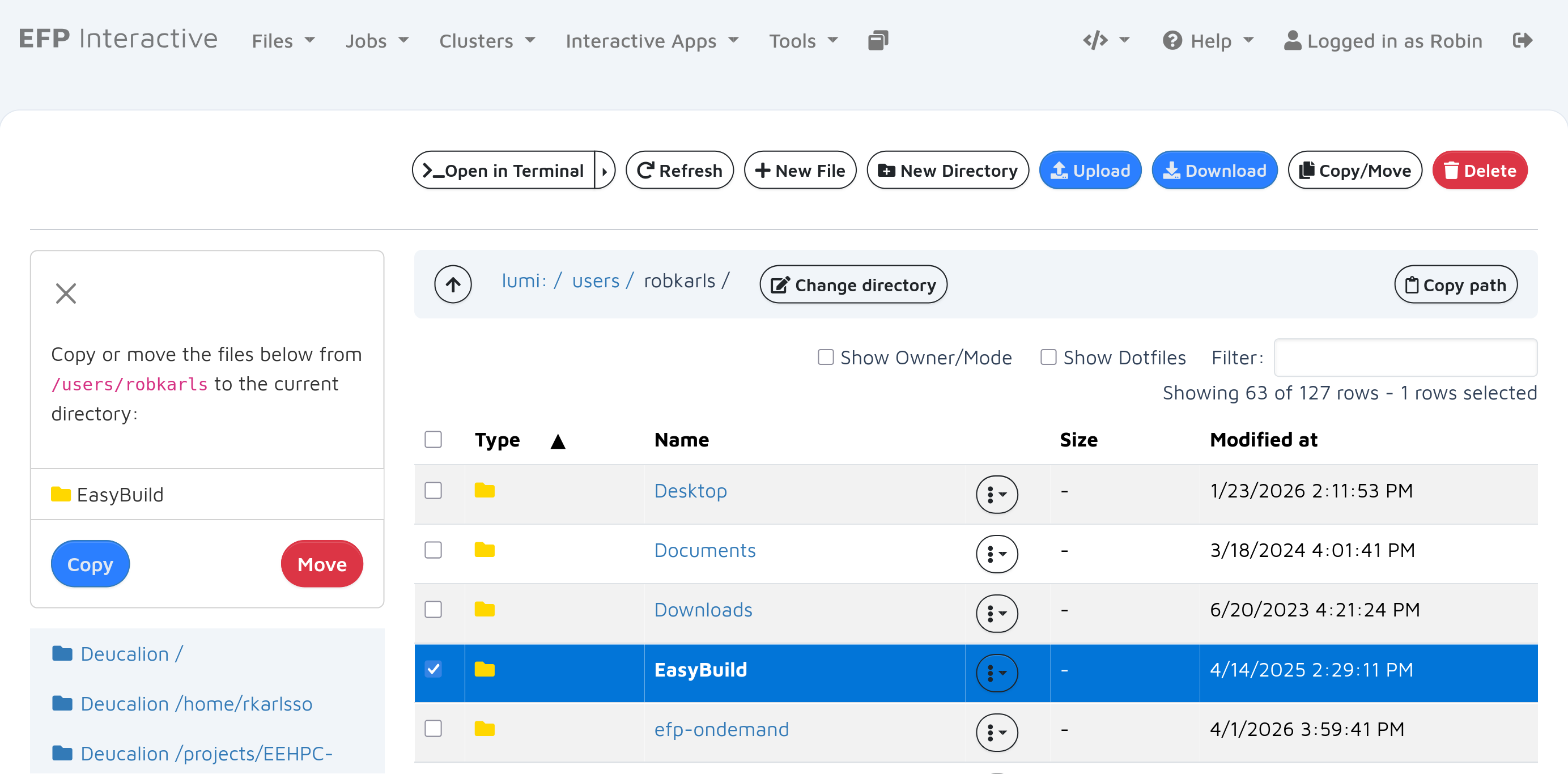
The way to copy/move files is a bit unintuitive:
- Navigate to the source directory.
- Mark the files.
- Click Copy/Move in the actions bar.
- Navigate to target directory.
- Click Copy or Move on the left.
Limitations
- This interface is intended for managing small amounts of files and directories.
- Uploading of files/directories from your local computer is limited to max. 2 GB.
- Downloading of directories to your local computer is limited to max. 1 GB.
- File transfers across different systems are not supported.
Accessing object storage
Object storages (e.g. LUMI-O) can be accessed in the file browser after configuring authentication. This uses Rclone behind the scenes. The Rclone configuration needs to be edited manually to add authentication tokens. You can find the page for configuring the object storage endpoints and authentication under the Tools section in the navigation bar. Editing the configuration for the first time will provide you with a configuration template for LUMI-O. After configuring the endpoints, they will not instantly appear, you have to click the link on the configuration page to refresh the list of endpoints, after which they will appear under the Files section in the navigation bar.
Job management
Active jobs
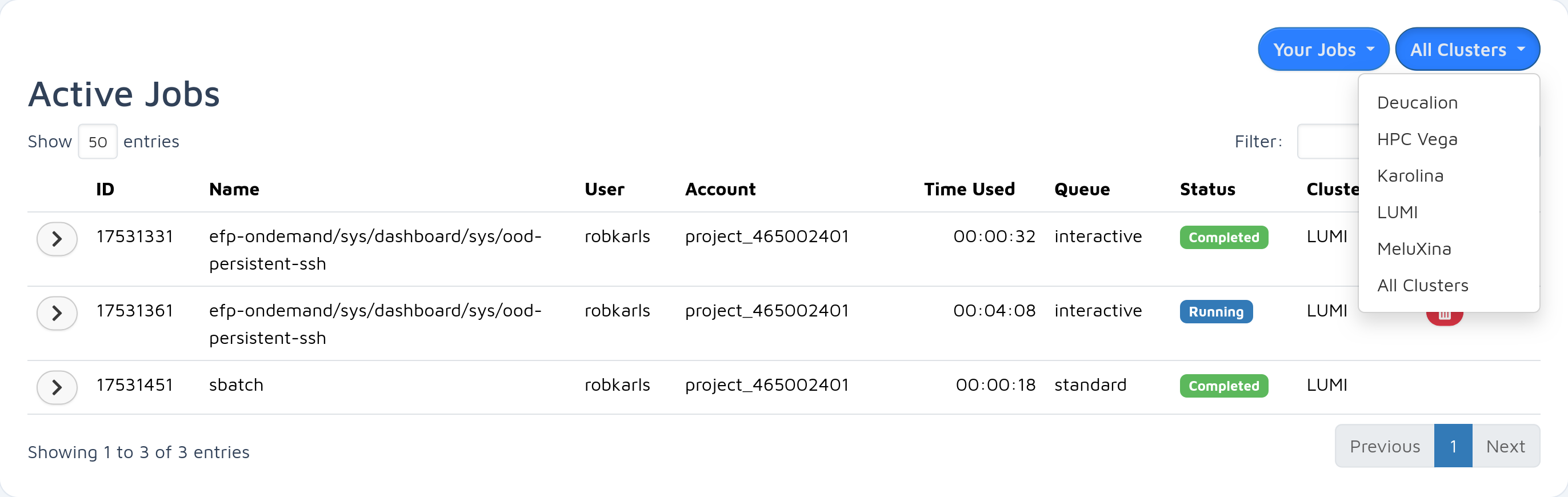
The Active jobs app shows currently running, queued, and recently completed Slurm jobs, including jobs that were launched outside of EFP Interactive. Jobs can be filtered by the cluster, and by expanding the row in the table, you will see more details about the job.
Batch jobs
The Batch jobs app shows only batch jobs launched through EFP Interactive.
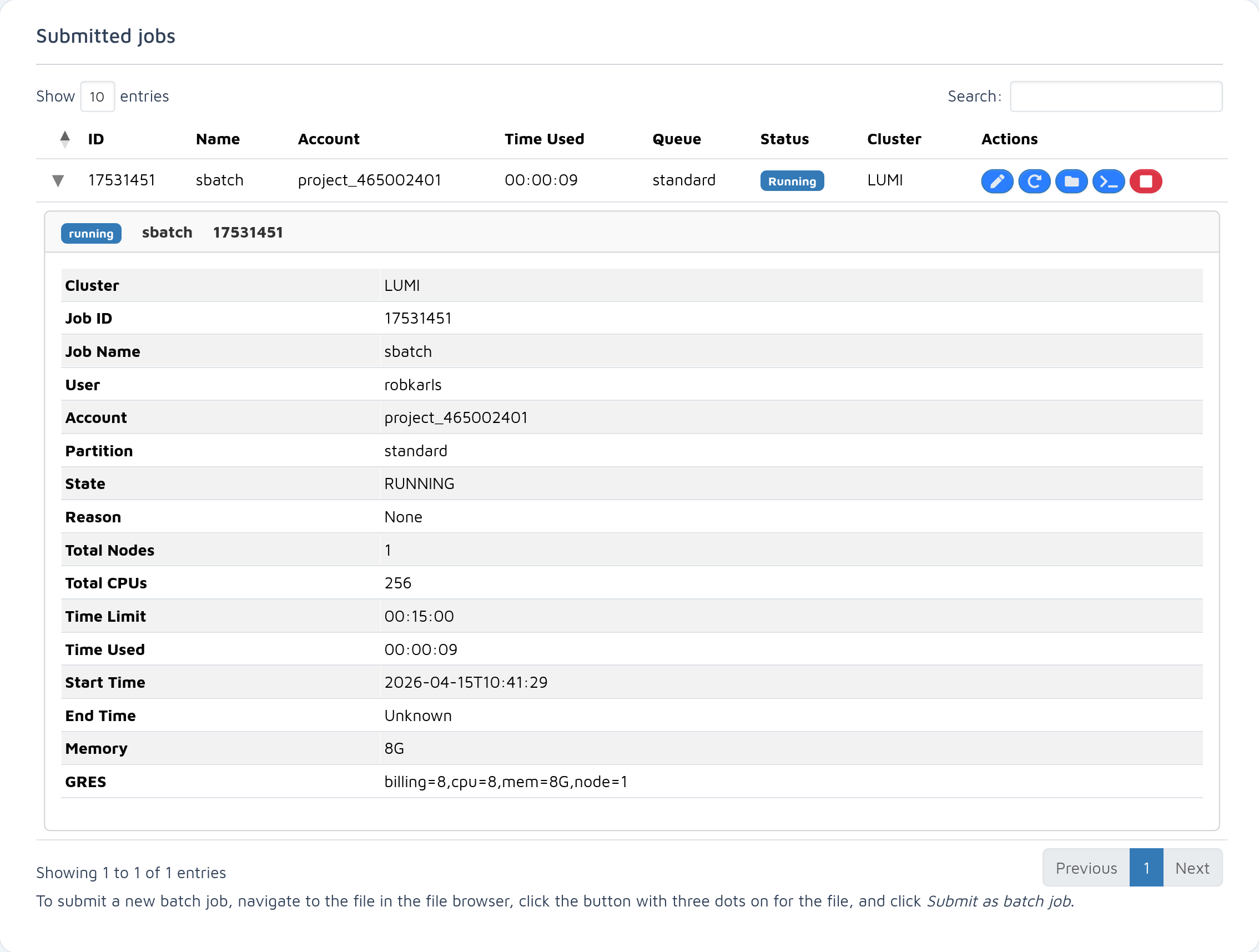
To launch batch jobs:
- Navigate to job script in file browser.
- Open the menu with three dots.
- Click Submit as batch job`
- Fill in the form to configure the parameters that will be used to submit.
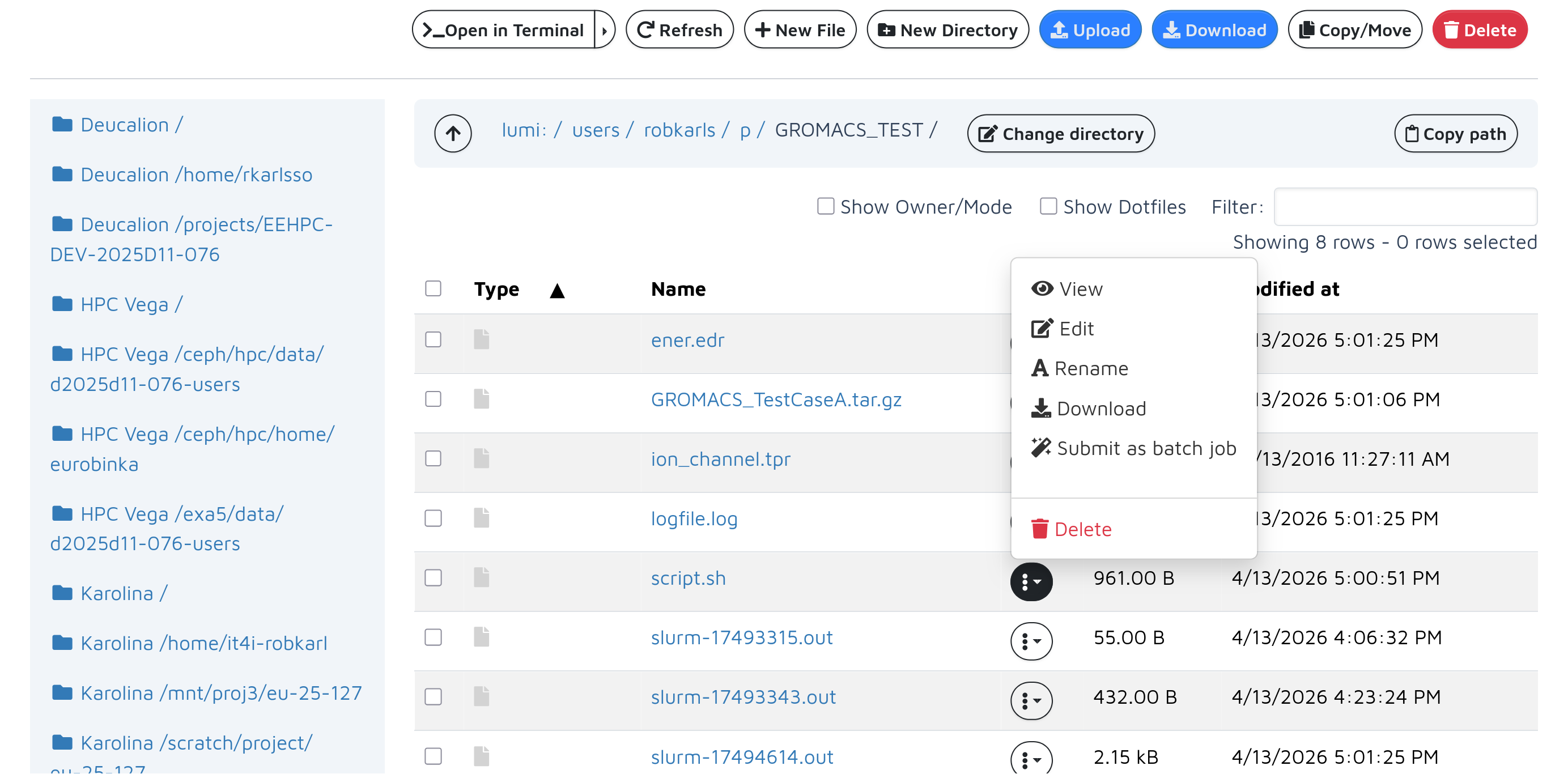
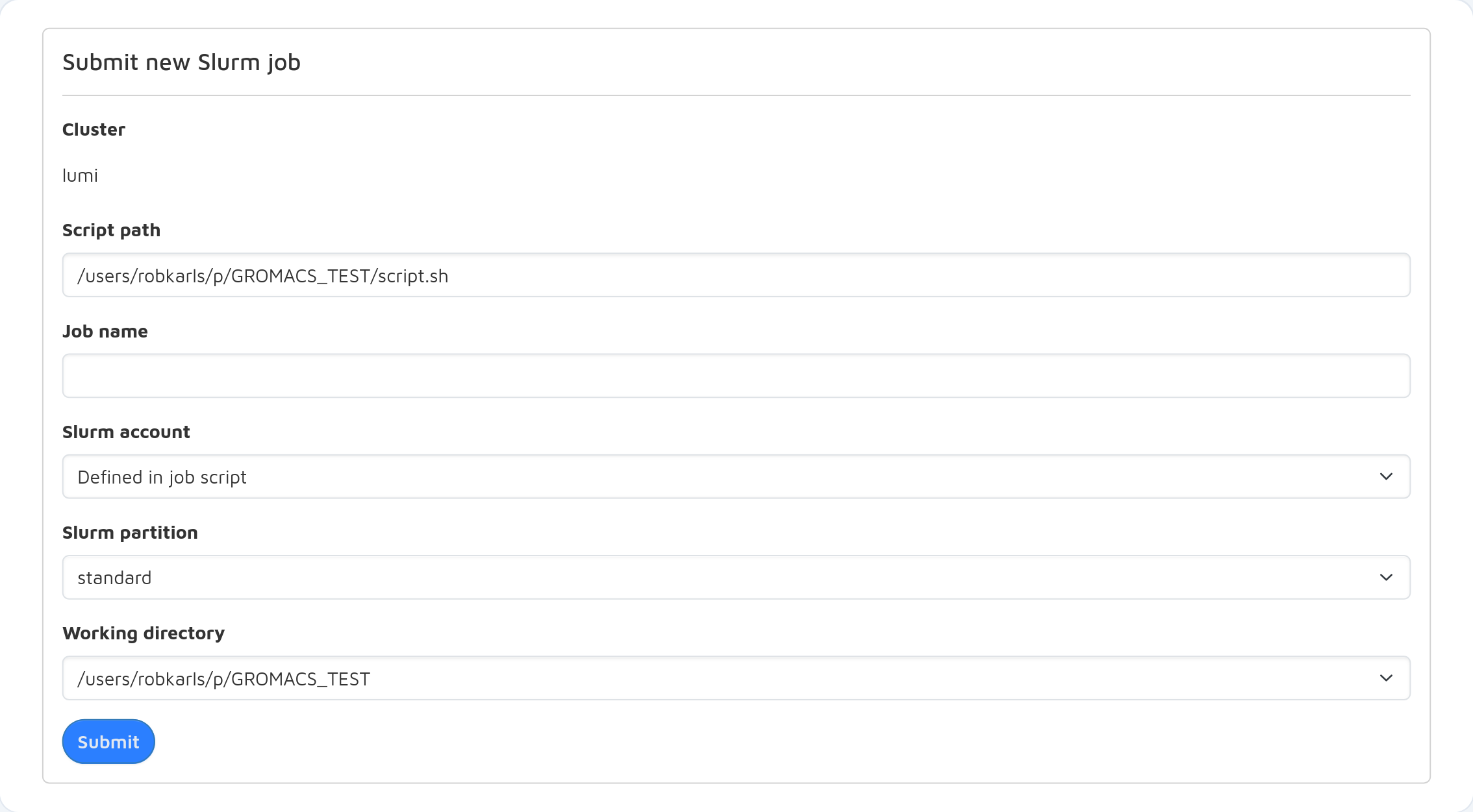
The #SBATCH in your job script can be used for defining your Slurm job parameters, but some parameters can also be
overridden in the submit form, e.g. the job name, Slurm account and the working directory. Currently, resource must be
specified in the job script using the #SBATCH directives.
Shell access
EFP Interactive provides two types of shell access:
Login node shell
A login node shell is less persistent: anything you run is killed if you close the browser tab or lose network connection, but gives you convenient access to the login nodes of the cluster.
Compute node shell
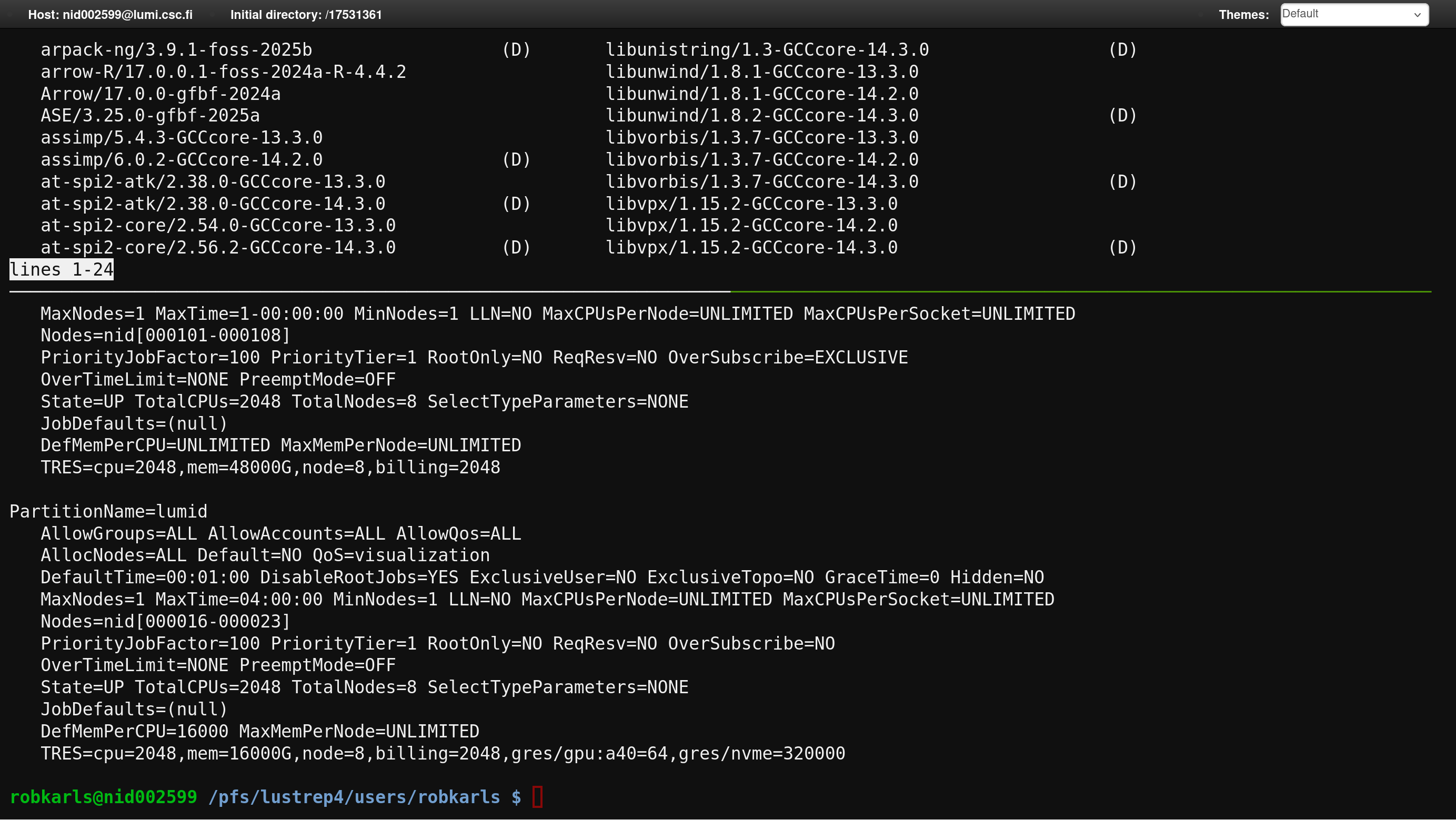
A compute node shell is more persistent and gives you access to the resources of the compute nodes, for example more CPUs, memory, or GPUs.
The compute node shell uses tmux, which means that even if you disconnect, you can resume where you left off as long
as the Slurm job is still running.
Interactive apps
General information
All interactive apps run in Slurm jobs on compute nodes, and are web applications that you can access through EFP Interactive.
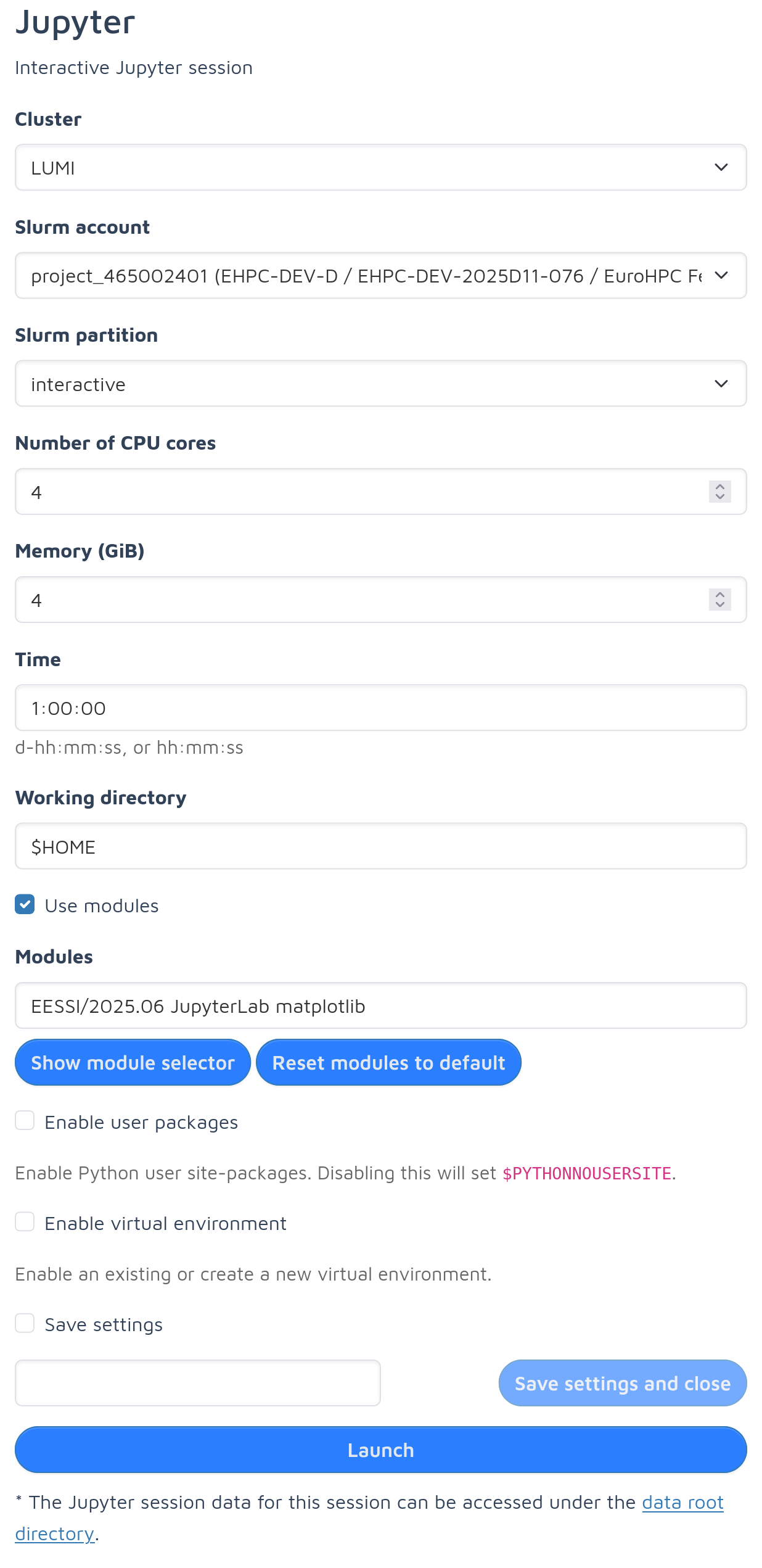
The form to start an interactive app has fields for cluster, account, resources, and app-specific settings.
It is recommended to fill in the form from the top to the bottom, since previous choices affect available options below. For example, the Cluster field affects the available accounts, the selected account affects available partitions (e.g. CPU and GPU partitions), and the partition selected affects available resource options.
The settings can be saved (at the bottom of the form) to easily switch between different commonly used configurations.
After launching an application, you will be redirected to the My Interactive Sessions page, where you will see a list
of your currently running sessions. As the interactive apps run as Slurm jobs, you first need to wait for the Slurm job
to queue. Once the Slurm job for the app session has started running, the app session will change its status to
Starting.
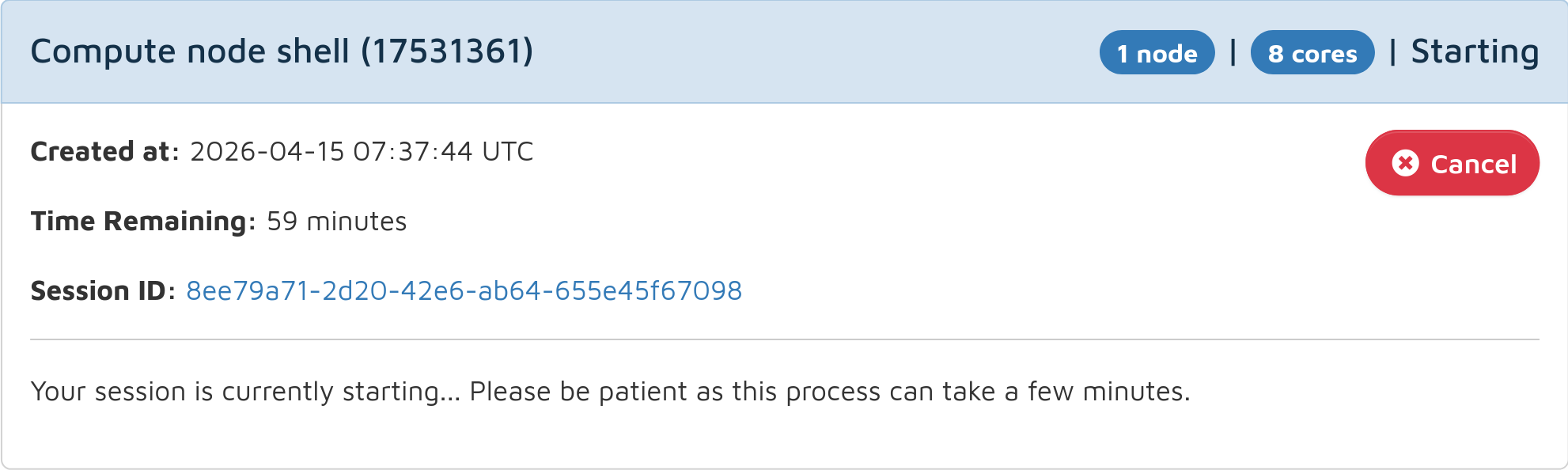
Once the session is ready, the status will change to Running, and a button will appear for connecting to the session.
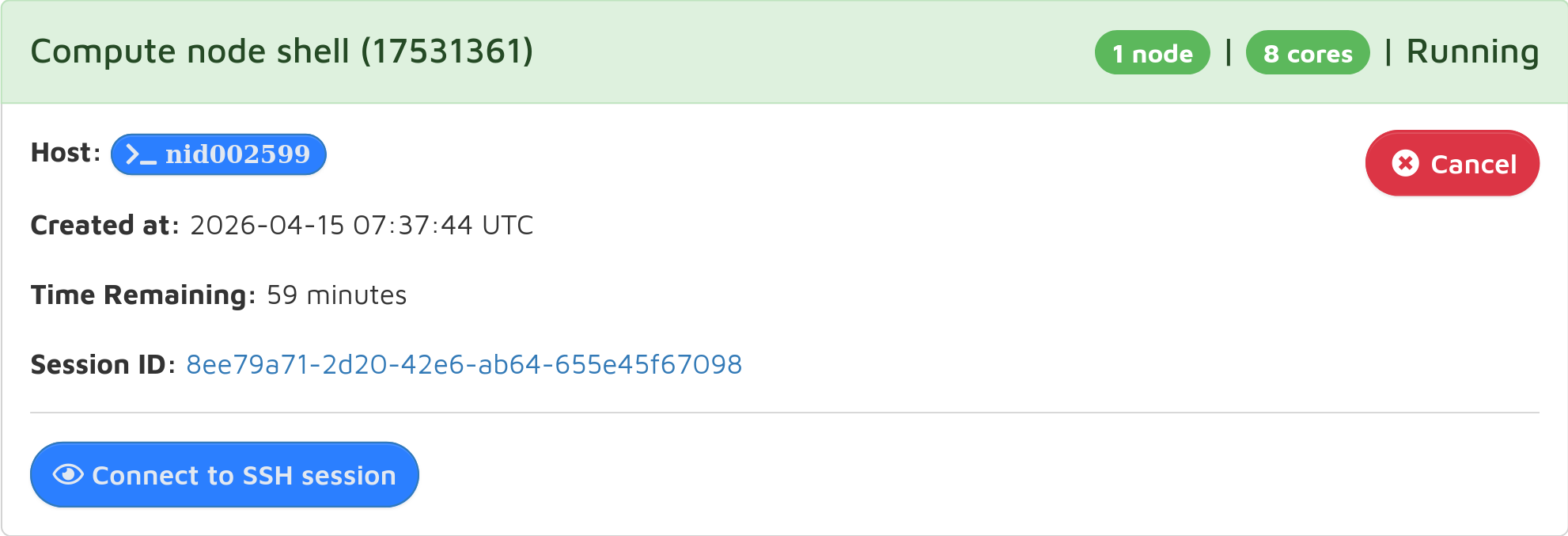
If the interactive app does not change its status to Running, and instead goes directly to Completed, that means it
failed to launch. By clicking on the session ID in the app card, you can find the log file for the session
(output.log), which may contain useful information. Please include the log file in support requests to the helpdesk.
Desktop
Through the Desktop app, you can run a VNC Desktop, where graphical applications can be run.
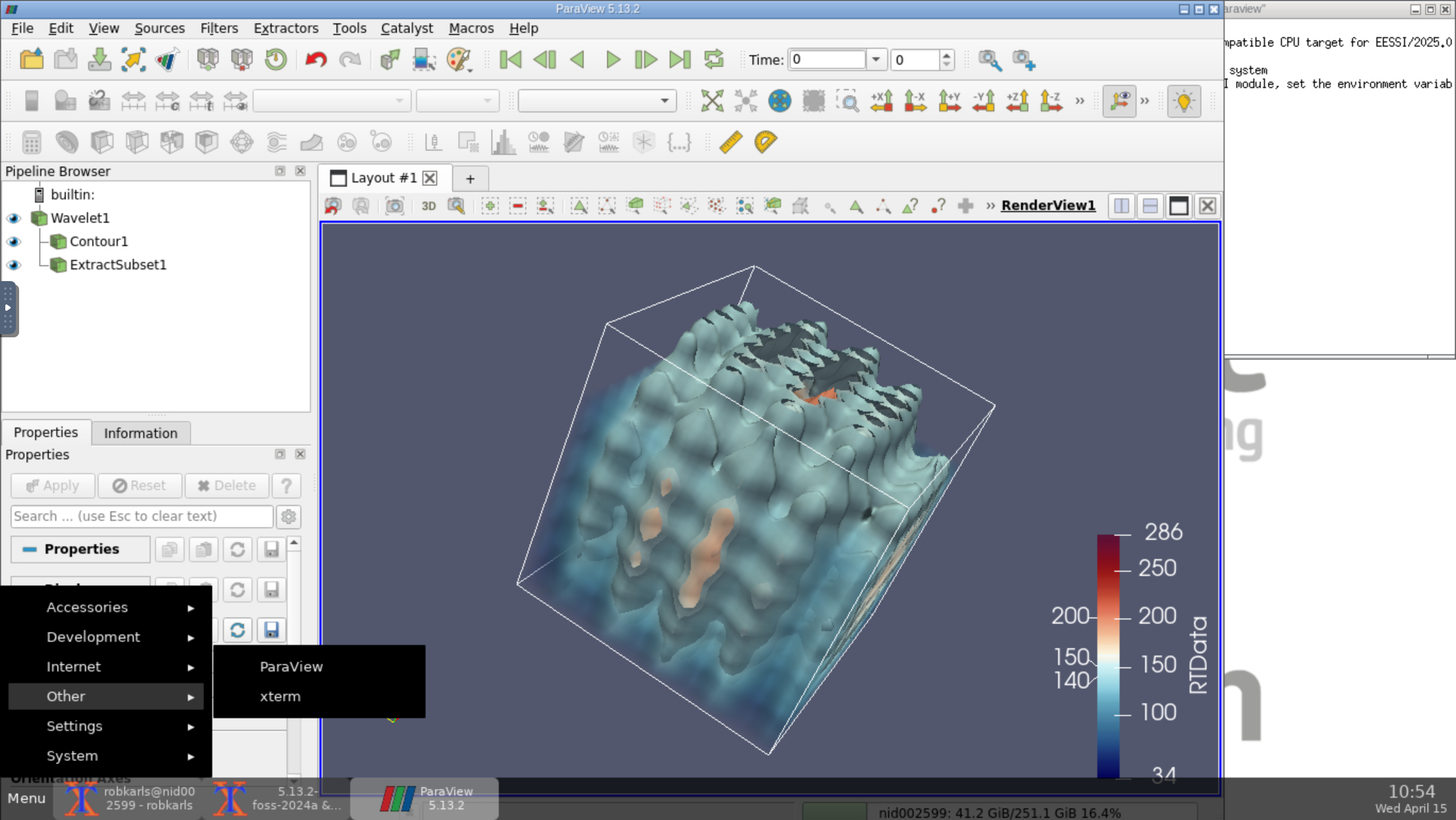
Currently only ParaView and xterm are provided as shortcuts. Note that the applications menu in the Desktop currently show all applications installed on the system, although they likely do not work and are not supported.
Other software, e.g. applications in the Federated Software Catalog stack or custom installations can be run through xterm.
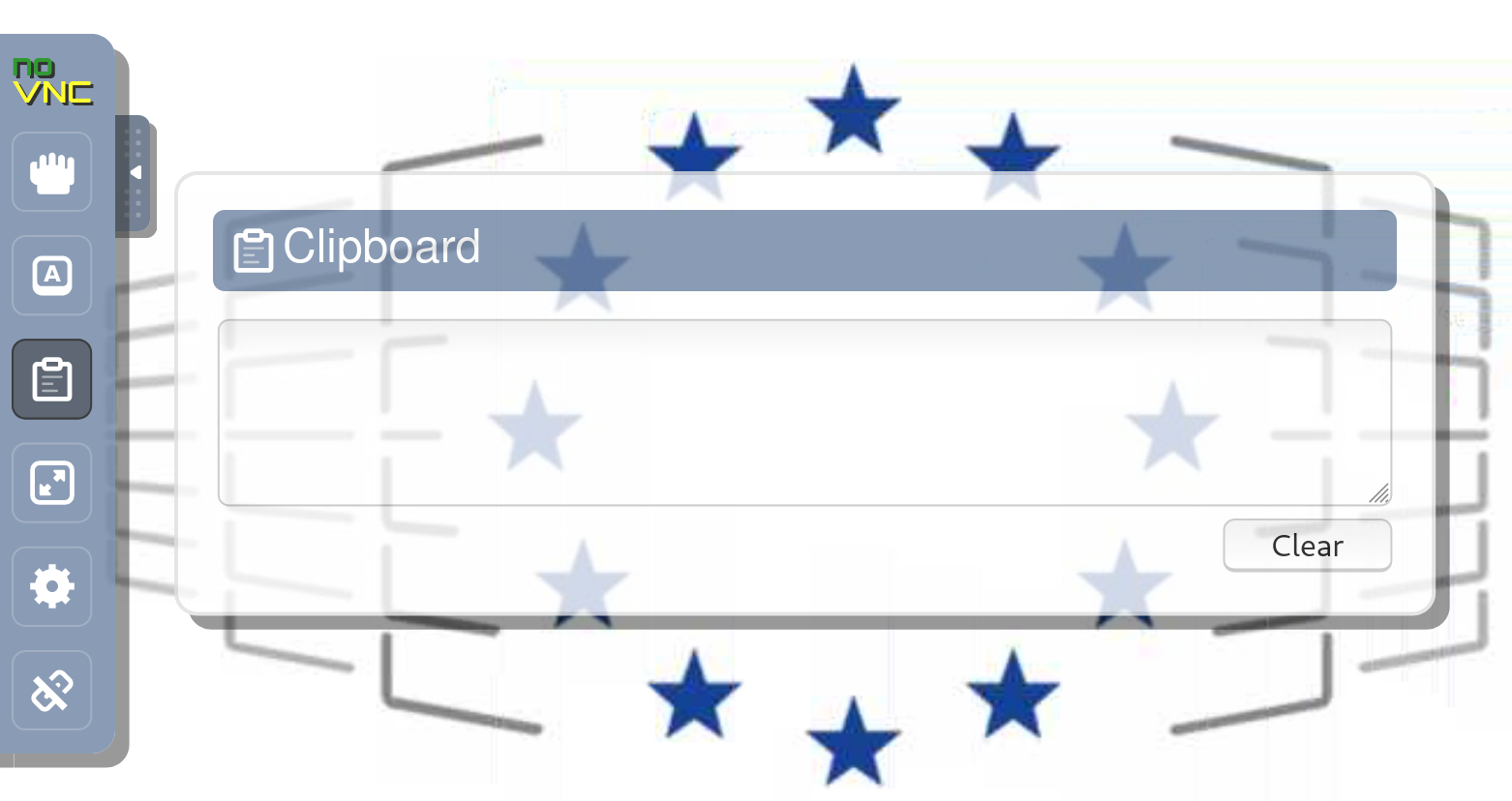
For copying and pasting text between local computer and VNC, use the clipboard text field in the VNC menu on the left side of the page.
Jupyter
Through the Jupyter app, you can run a Jupyter Lab instance on the compute nodes.
This uses a Python environment from the Federated Software Catalog, and you can extend it with either user packages or a virtual environment.
JupyterLab must be installed in the Python environment used. This means that you will either need to load the JupyterLab module from the Federated Software Catalogue, or your user packages or virtual environment must contain a compatible installation of JupyterLab.
The module selector currently does not check the compatibility between different modules. If Jupyter fails to launch due to missing modules, you will most likely find relevant errors in the logs for the session.
Virtual environments will be created if they do not already exist, but the same module must be used when using the virtual environment later.
The Jupyter: Container app allows running Jupyter with a Python environment from a container.
Additional apps
Additional apps are provided by EFP Interactive, including MLflow, RStudio, etc.
More information
An introductory webinar to EFP Interactive was held on 4 March 2026:
Slides for this webinar are available here.
See also the training page for more information on this and other webinars.
Questions?
If you have any questions related to the use of the Interactive component of the EuroHPC Federation Platform, please contact the EFP Helpdesk.